Since we’ll be working with MediaCoder, you should get it here [1]. Be sure to download the FULL EDITION, open the installer and follow the instructions.
Now we can get started.
- Open another screen in your browser, go to www.youtube.com [2] and select the movie you want to download. If you can’t think of anything, you can try it with this [3] great Slipknot – Psychosocial music video.
- Now, open MediaCoder, if you don’t have a desktop shortcut, it’s probably somewhere in your start menu.
- Follow the instructions till you’re in the main program (usually, first an website appears with "Start MediaCoder").
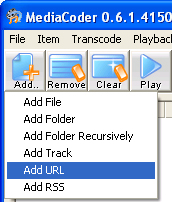
- Now go to the upper left corner press Add.. and then press Add URL.
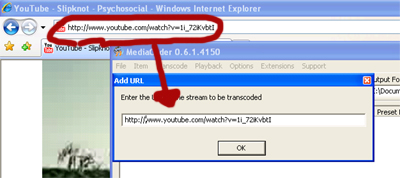
- Now copy the url from the youtube movie in the "Add URL" box in MediaCoder (select the URL in your browser, Ctrl+c, click in the box in MediaCoder, Ctrl+v).
- Now single click on the newly appeared entry. MediaCoder may crash while doing this. If so, you should try it again, or otherwise find another movie.

- In the upper right corner, change your output folder to a folder you know, otherwise you have a chance that the movie will appear in a temporary folder, and it takes some time to find it back if that happens.
- From here on it matters what you want to do:
Download the whole video (video + sound)
- First of all, go to the audio tab (if you weren’t there already) and make sure "enable audio" is checked.
- I would recommend to encode the audio with the LAME encoder at 128kb/s CBR (since youtube just doesn’t offers a better quality). If you want this, your settings should be like this:
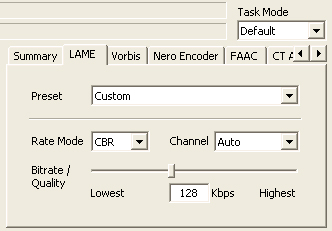
If you want to rip it at 192kb/s, you should slide the bitrate/quality slide to 192kb/s.
- Now go to the Video tab and make sure the "enable video" option is checked.
- Again, you can choose to copy my settings, or just select them yourself:
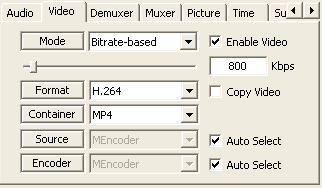
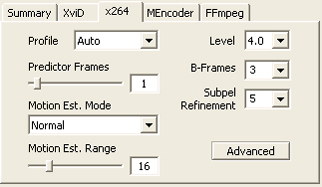
If you want to rip it as a flash movie or something, you should change "Container" to flash movie or MOV or whatever you want it to be. But mp4 seems to be a great format for ipods.
- Now the easy part starts: press the start button and wait for MediaCoder to fnish the converting process (it can take a few minutes).
- If everything is all right, you should see a video screen pop up with your selected video played in it (probably much and much slower than it does on Youtube).
- When this process stops, the video should be in the output folder that you’ve selected.
- We’re finished, enjoy your ripped video.
Only download/rip the music of the video
- First of all, go to the audio tab (if you weren’t there already) and make sure "enable audio" is checked.
- I would recommend to encode the audio with the LAME encoder at 128kb/s CBR (since youtube just doesn’t offers a better quality). If you want this, your settings should be like this:
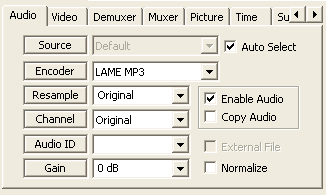
If you want to rip it at 192kb/s, you should slide the bitrate/quality slide to 192kb/s.
- Now go to the Video tab and make sure the "enable video" option is NOT checked, so it should be DISABLED. Like this:

- Now the easy part starts: press the start button and wait for MediaCoder to be finished (it can take a few minutes, but it should be faster than ripping the video).
- When this process stops, the video should be in the output folder that you’ve selected.
- Enjoy your ripped music!
NOTE: It is known that this trick doesn’t work on all youtube videos. This will probably change in newer versions of MediaCoder.
If this doesn’t work, you can always try it the easy way: http://www.mediaconverter.org/ [4].
3 Comments To "Rip videos and music from Youtube"
#1 Comment By xxxxxxx On August 23, 2008 @ 9:29 pm
#2 Comment By Cleveland Cruzan On March 25, 2010 @ 3:06 pm
I love youtube but it does have some bad things on it. Like with copyright and things.
#3 Comment By music On February 12, 2011 @ 5:58 am
have been looking for a easy way to download youtube music videos